
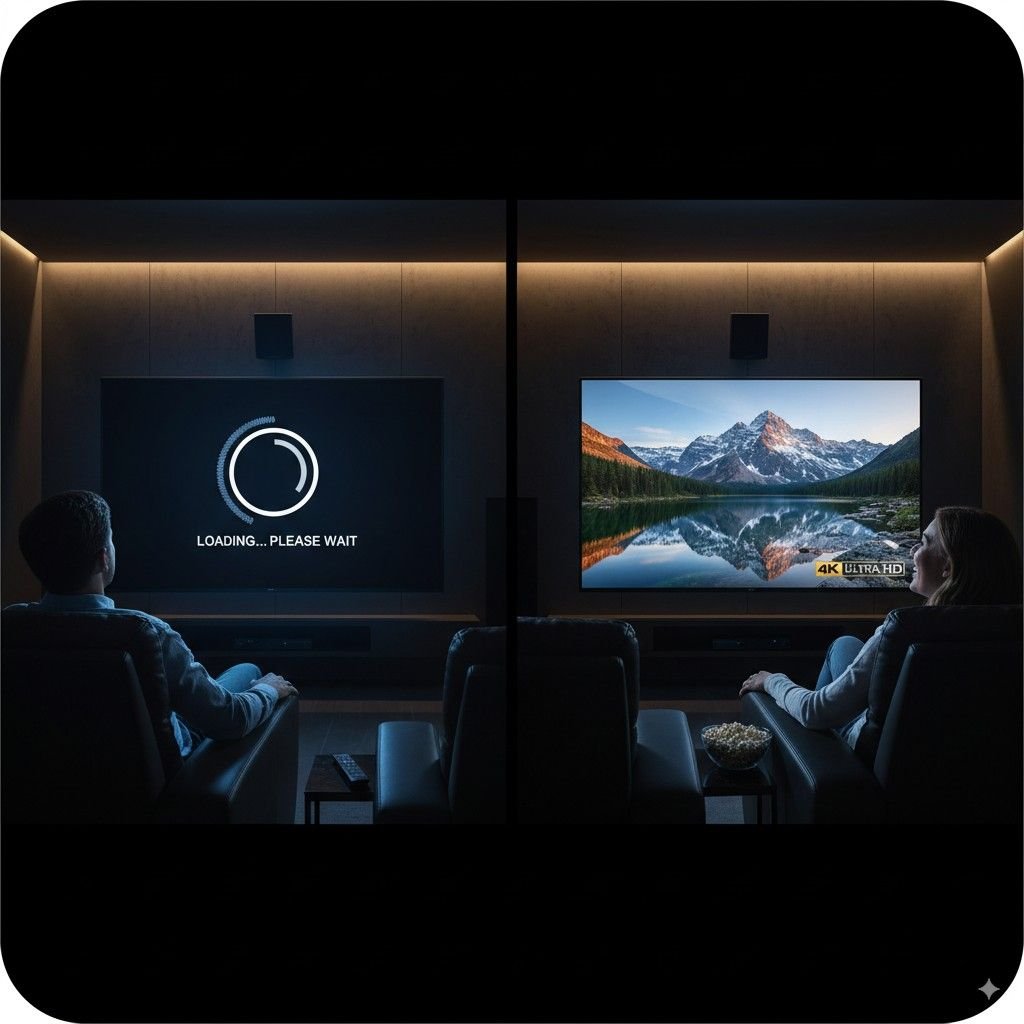
Stop constant buffering and freezing with these proven technical solutions. Expert troubleshooting guide for all IPTV devices and connections.
IPTV buffering represents the most frustrating technical issue faced by streamers worldwide. When your favorite show stops every few seconds to load, or sports events freeze during crucial moments, the viewing experience becomes unbearable. This comprehensive guide addresses every major cause of IPTV buffering and provides step-by-step solutions that work.
Understanding IPTV Buffering: Why It Happens
IPTV buffering occurs when your device cannot receive streaming data fast enough to maintain continuous playback. Unlike traditional cable signals, IPTV streams require consistent internet connectivity and proper device configuration to function smoothly.
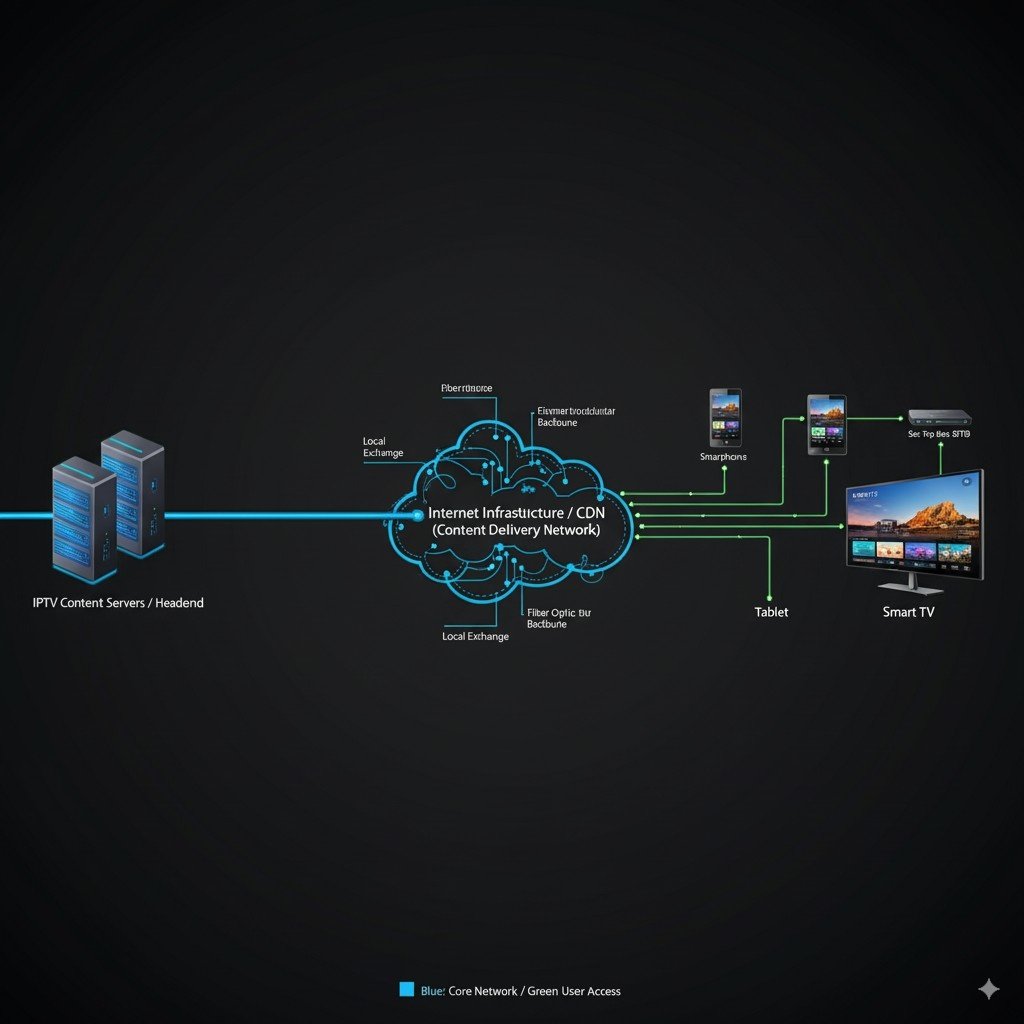
Primary Buffering Causes
Internet Speed Insufficiency: Most buffering stems from inadequate bandwidth. While providers advertise certain speeds, actual delivered speeds often fall short during peak hours.
Network Congestion: When multiple devices share your connection simultaneously, available bandwidth gets divided, causing streaming interruptions.
ISP Throttling: Some internet service providers deliberately slow IPTV traffic, particularly during high-usage periods or when detecting streaming activity.
Device Limitations: Older streaming devices or those with insufficient processing power struggle to decode IPTV streams efficiently.
Server Overload: Popular channels during peak viewing times can overwhelm IPTV servers, causing widespread buffering across multiple users.
Internet Speed Requirements: Getting It Right
Recommended Speeds by Quality
Professional IPTV services like qwiq.tv optimize their streams for various connection speeds, but minimum requirements still apply:
- Standard Definition (480p): 3-5 Mbps per stream
- High Definition (720p): 5-8 Mbps per stream
- Full HD (1080p): 8-12 Mbps per stream
- 4K Ultra HD: 25+ Mbps per stream
Testing Your Actual Speed
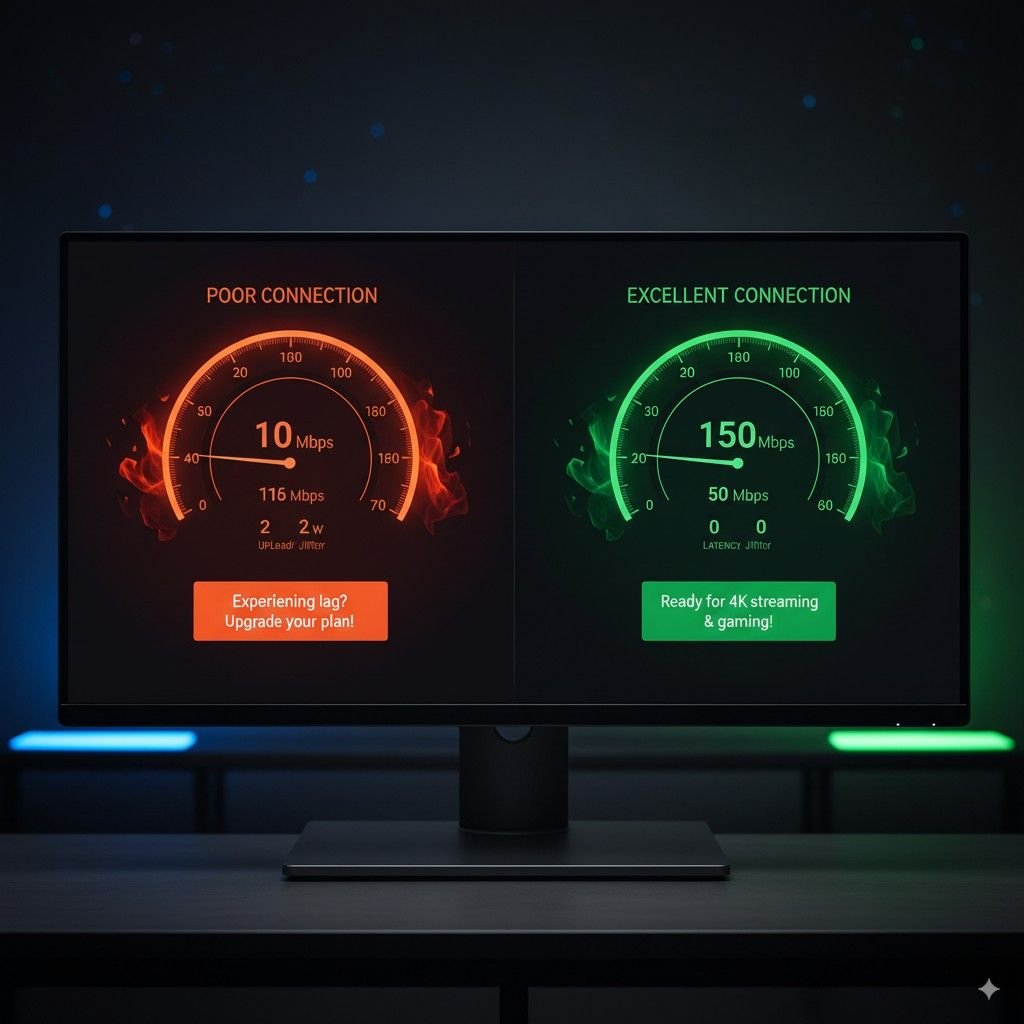
Run speed tests at different times throughout the day to identify patterns. Many users discover their “50 Mbps” package delivers only 15-20 Mbps during evening hours when buffering problems peak.
Critical Testing Times:
- Morning (8-10 AM)
- Afternoon (2-4 PM)
- Prime time (7-10 PM)
- Late night (11 PM-1 AM)
Document these results to identify when your connection becomes insufficient for smooth streaming.
Device-Specific Buffering Solutions
Firestick Optimization
Amazon Firestick devices often buffer due to limited RAM and storage constraints. Follow these optimization steps:
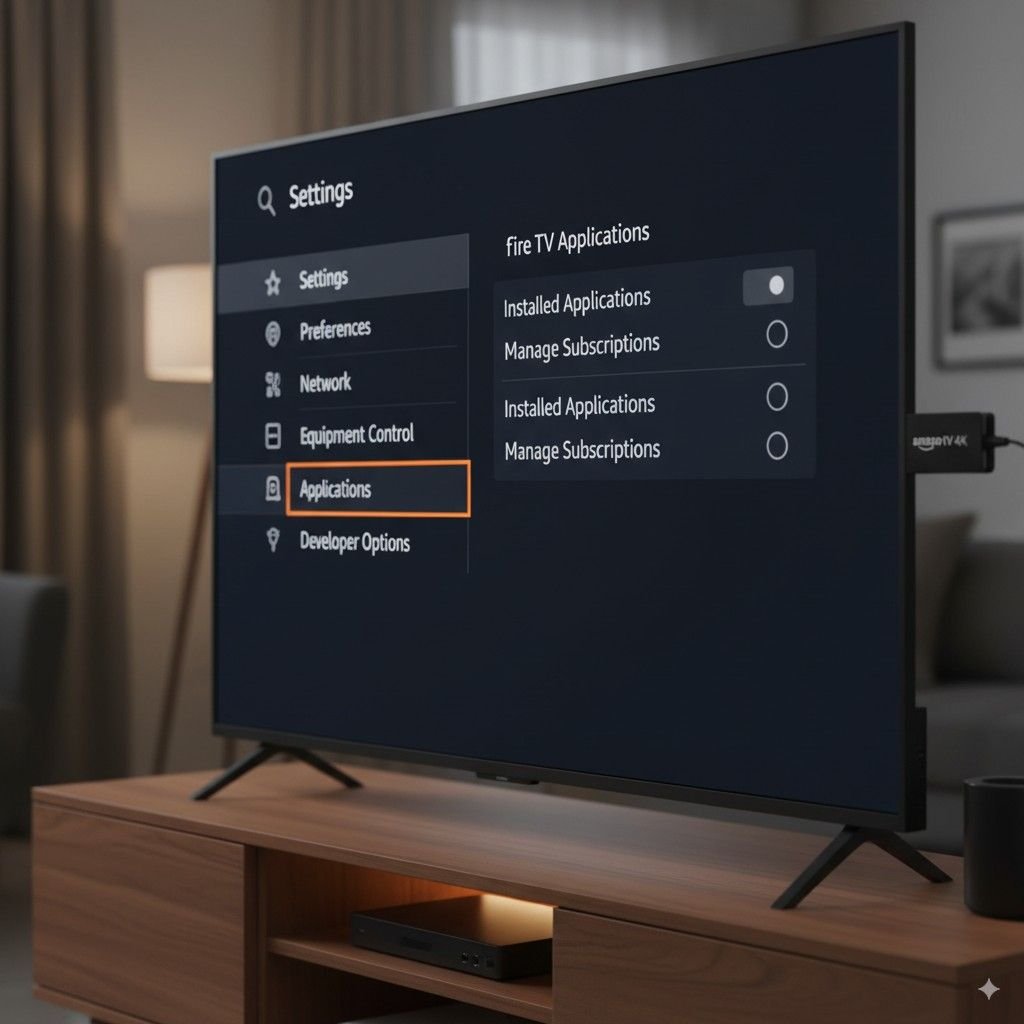
- Clear App Cache: Navigate to Settings > Applications > Manage Installed Applications > [Your IPTV App] > Clear Cache
- Force Stop Background Apps: Close unused applications consuming memory
- Restart Device: Power cycle your Firestick daily to clear memory leaks
- Update Software: Ensure your Firestick runs the latest firmware version
For more detailed Firestick setup instructions, see our [Firestick IPTV Installation Guide – INTERNAL LINK PLACEHOLDER].
Smart TV Solutions
Smart TVs often struggle with IPTV applications due to limited processing power and outdated software.
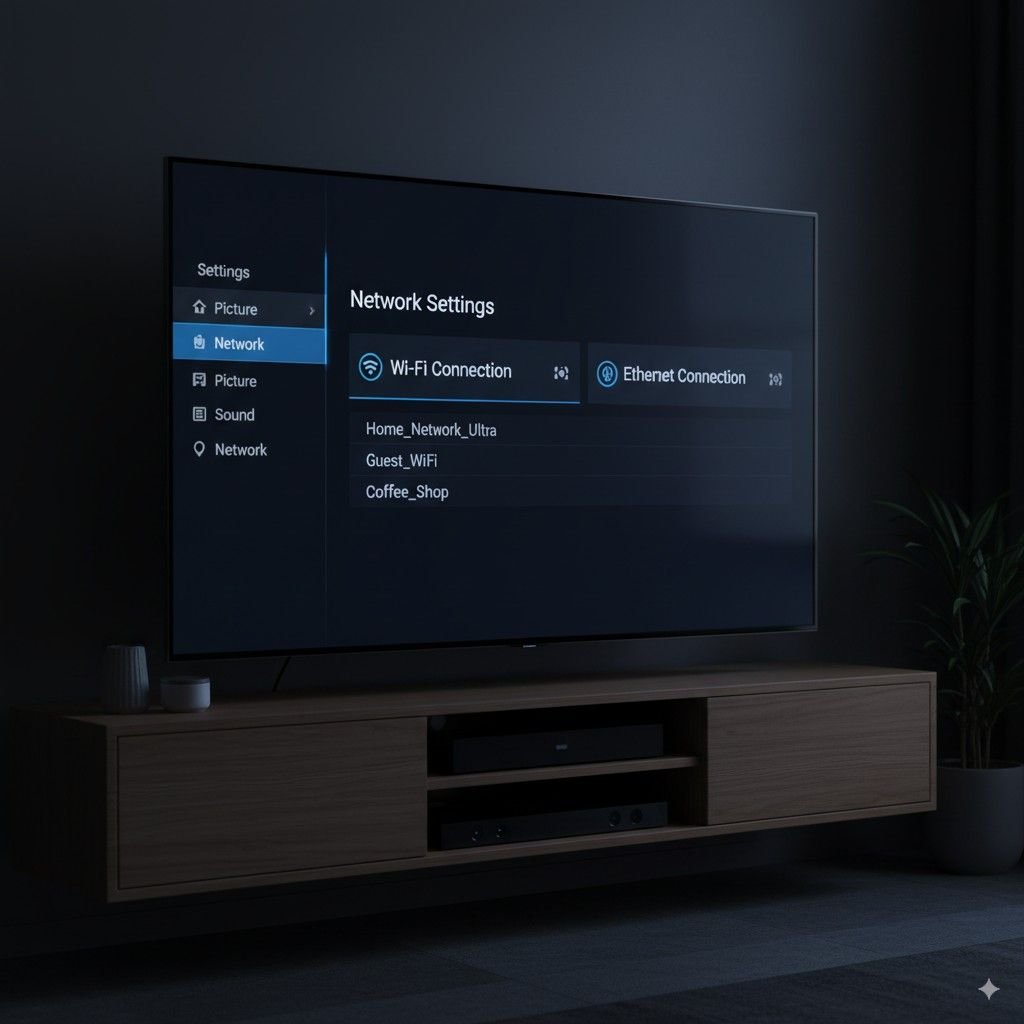
Samsung TV Fixes:
- Disable auto-updates for unused apps
- Clear Smart Hub cache through service menu
- Use wired Ethernet connection when possible
- Restart TV daily to prevent memory buildup
LG TV Optimization:
- Update WebOS to latest version
- Clear browser cache and cookies
- Disable unnecessary background services
- Consider external streaming device for better performance
Apple TV Troubleshooting
Apple TV generally provides excellent IPTV performance, but specific optimization steps can eliminate remaining buffering issues.
- Restart Apple TV: Hold menu and home buttons simultaneously
- Check Network Settings: Verify connection speed and stability
- Reduce Video Quality: Temporarily lower resolution to test connection
- Reset Network Settings: Re-configure Wi-Fi connection from scratch
Learn more about Apple TV IPTV setup in our [Apple TV IPTV Configuration Guide – INTERNAL LINK PLACEHOLDER].
Network Optimization Strategies
Wired vs Wireless Connections
Ethernet connections eliminate many buffering problems by providing stable, consistent bandwidth without Wi-Fi interference.
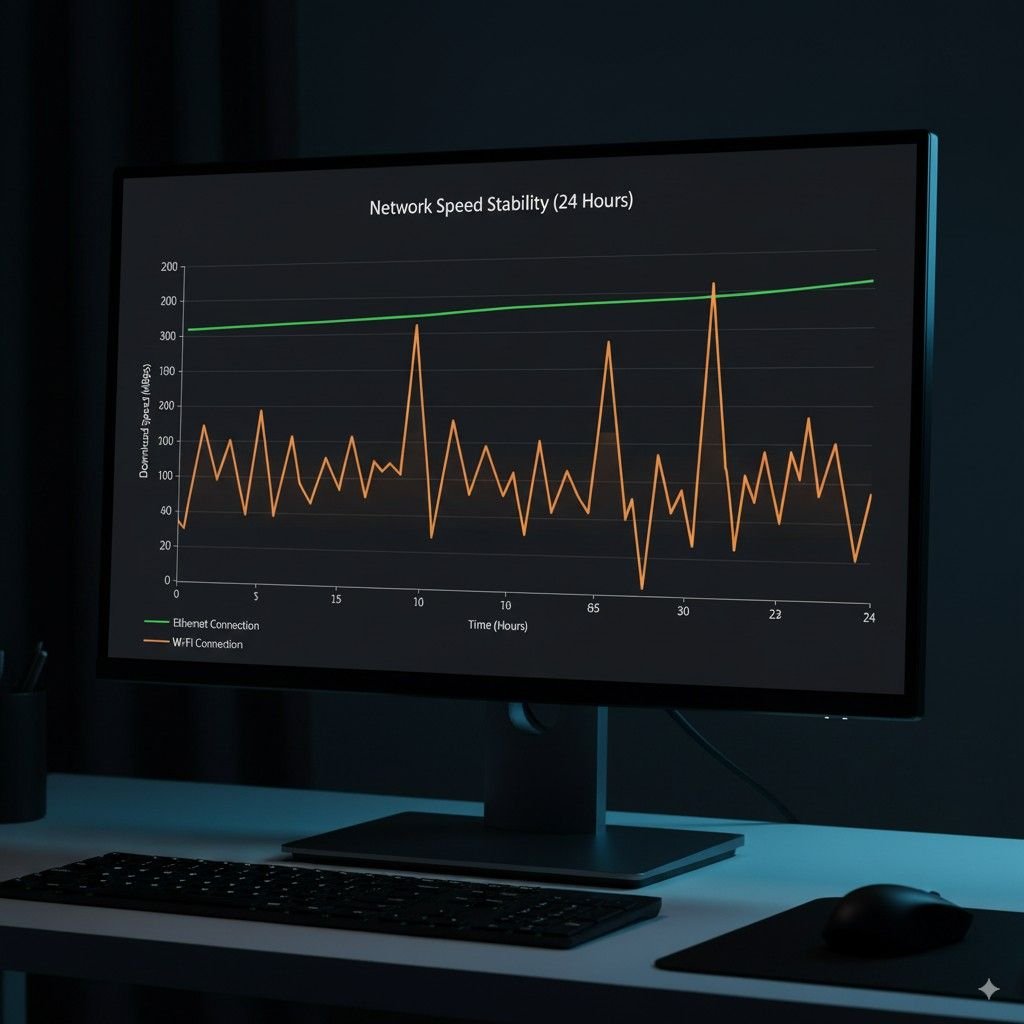
Ethernet Advantages:
- Eliminates Wi-Fi interference
- Provides consistent speeds
- Reduces latency and packet loss
- Supports higher bandwidth applications
Wi-Fi Optimization Tips:
- Position router centrally in your home
- Use 5GHz band for streaming devices
- Minimize interference from other electronics
- Upgrade to Wi-Fi 6 router for improved performance
Router Configuration
Modern routers offer Quality of Service (QoS) settings that prioritize streaming traffic over other internet activities.
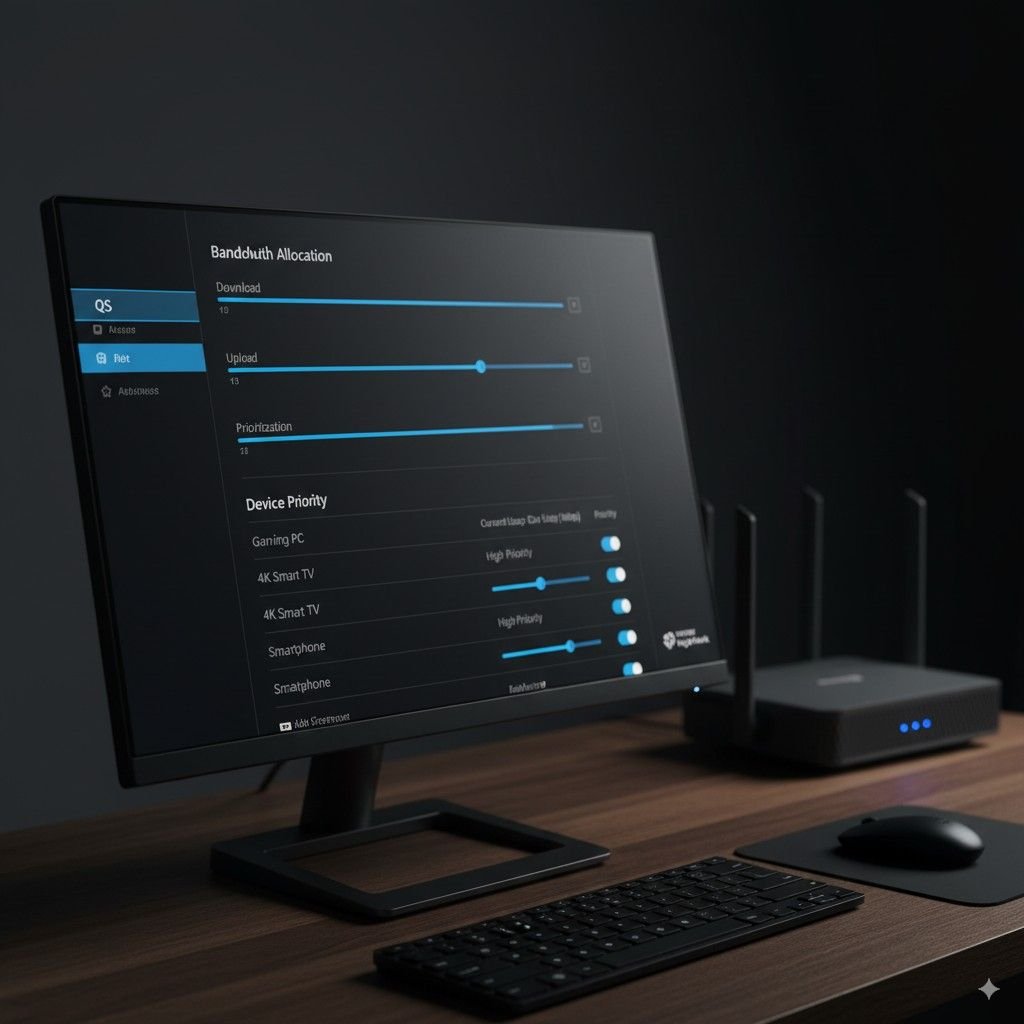
QoS Configuration Steps:
- Access router admin panel (typically 192.168.1.1)
- Locate QoS or Traffic Management settings
- Prioritize streaming devices by MAC address
- Allocate minimum bandwidth for IPTV applications
- Enable gaming mode for reduced latency
ISP Throttling: Detection and Solutions
Identifying Throttling
Internet service providers often throttle streaming traffic without notification. Detect throttling using these methods:
Speed Test Variations: Compare speed test results with actual streaming performance. Significant discrepancies indicate potential throttling.
Time-Based Patterns: If buffering occurs consistently during peak hours (7-11 PM) but not during off-peak times, ISP throttling is likely.
Protocol-Specific Slowdowns: When web browsing remains fast while streaming suffers, targeted throttling is occurring.
VPN Solutions
Virtual Private Networks can circumvent ISP throttling by encrypting traffic and masking streaming activity.
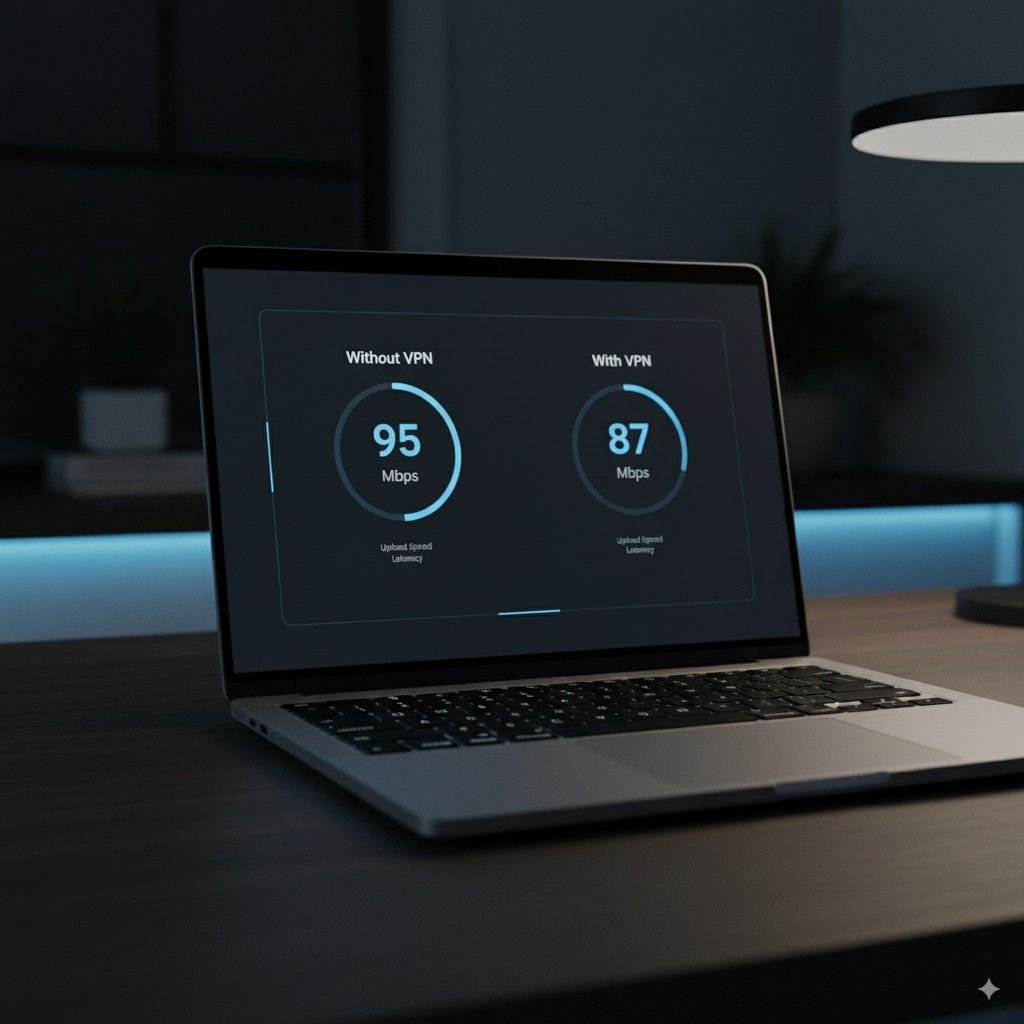
VPN Benefits for IPTV:
- Bypasses ISP throttling
- Improves connection stability
- Reduces packet loss
- Provides geographic flexibility
Recommended VPN Features:
- No bandwidth limitations
- Multiple server locations
- Fast connection speeds
- Strong encryption protocols
- No logging policies
For VPN recommendations specific to IPTV, check our [Best VPNs for IPTV Streaming Guide – INTERNAL LINK PLACEHOLDER].
Advanced Troubleshooting Techniques
DNS Optimization
Changing DNS servers can significantly improve IPTV performance by reducing lookup times and improving routing efficiency.
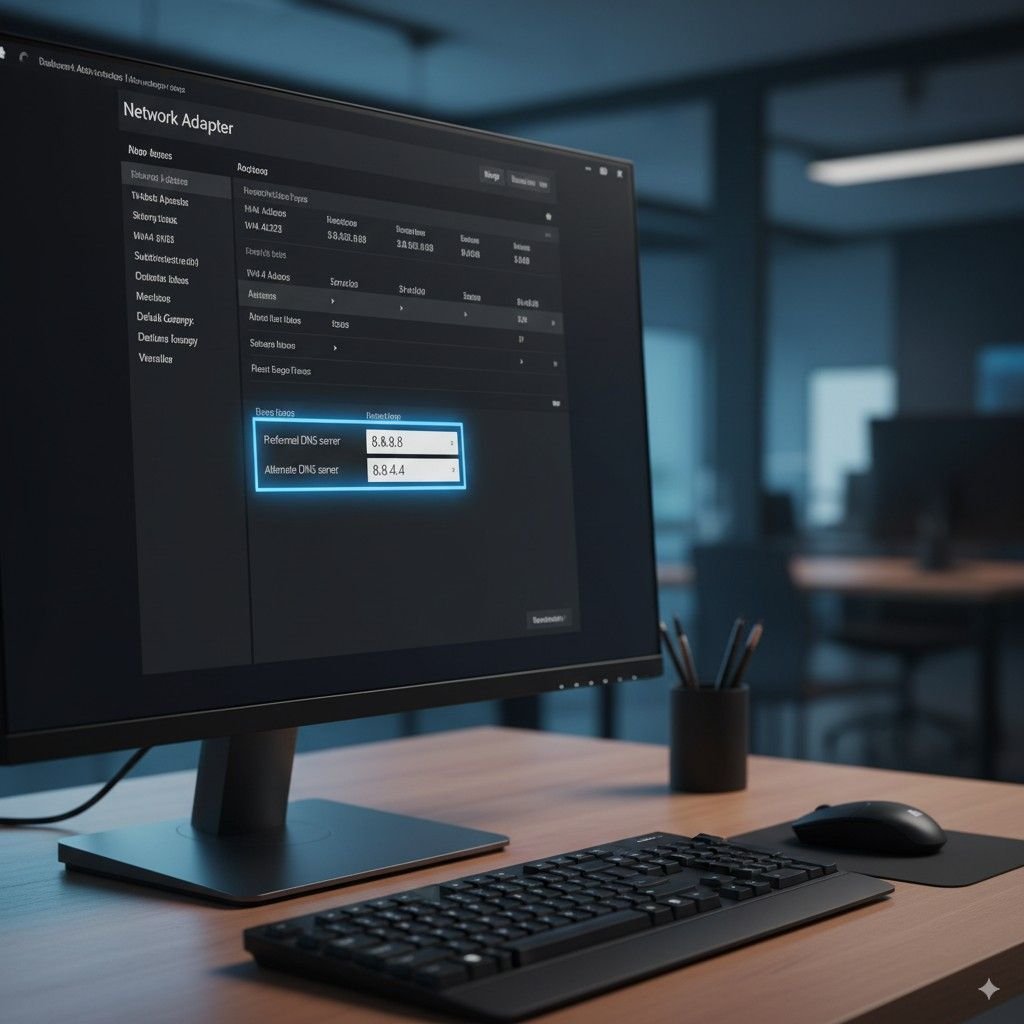
Recommended DNS Servers:
- Google DNS: 8.8.8.8 / 8.8.4.4
- Cloudflare DNS: 1.1.1.1 / 1.0.0.1
- OpenDNS: 208.67.222.222 / 208.67.220.220
Buffer Size Adjustment
Most IPTV applications allow buffer size customization. Increasing buffer size can eliminate short-term connection fluctuations.
Configuration Guidelines:
- Slow connections: Increase buffer to 30-60 seconds
- Fast connections: Reduce buffer to 5-10 seconds
- Variable connections: Use adaptive buffering when available
Port Forwarding
Advanced users can improve IPTV performance by configuring port forwarding for streaming applications.
Common IPTV ports requiring forwarding:
- Port 80 (HTTP)
- Port 443 (HTTPS)
- Port 8080 (Alternative HTTP)
- Custom ports specified by your IPTV provider
Provider-Specific Solutions
qwiq.tv Optimization
qwiq.tv’s advanced streaming infrastructure minimizes buffering through multiple optimization technologies:
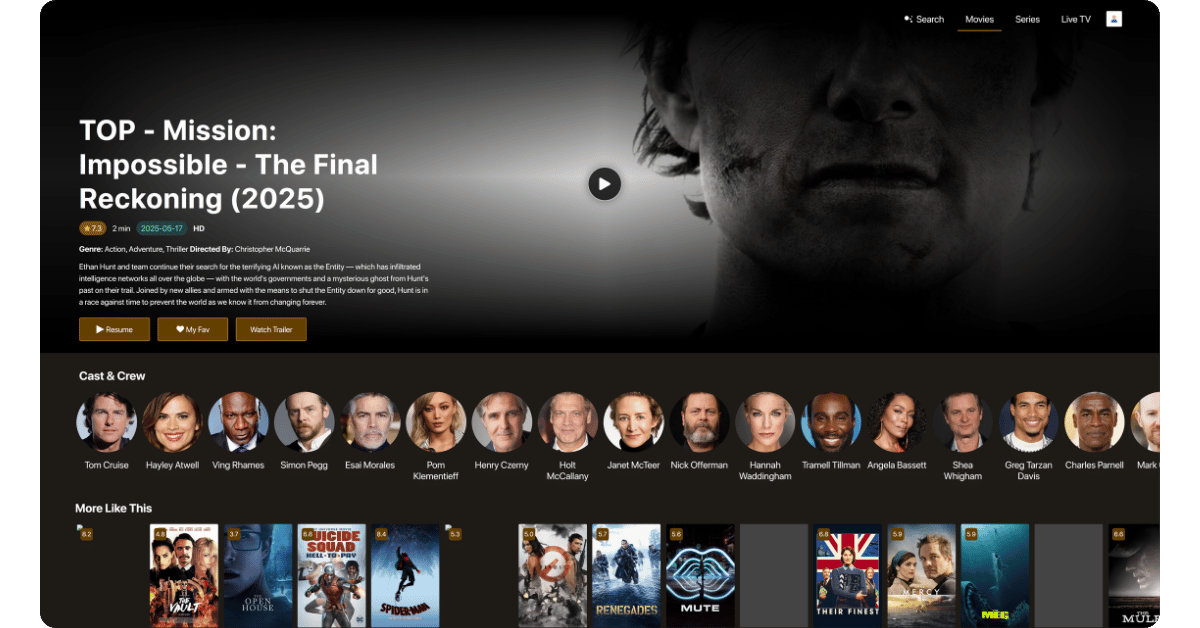
Built-in Anti-Buffering Features:
- Global CDN network with 50+ server locations
- Adaptive bitrate streaming
- Multiple backup servers per channel
- Real-time quality adjustment
- Advanced caching algorithms
qwiq.tv Performance Tips:
- Select server closest to your geographic location
- Enable adaptive quality in player settings
- Use recommended buffer settings for your connection speed
- Take advantage of multiple connection options
- Contact support for connection-specific optimization
Testing Service Quality
Before committing to any IPTV service, thoroughly test performance during your typical viewing hours. qwiq.tv offers 24-hour free trials allowing comprehensive evaluation of streaming quality.
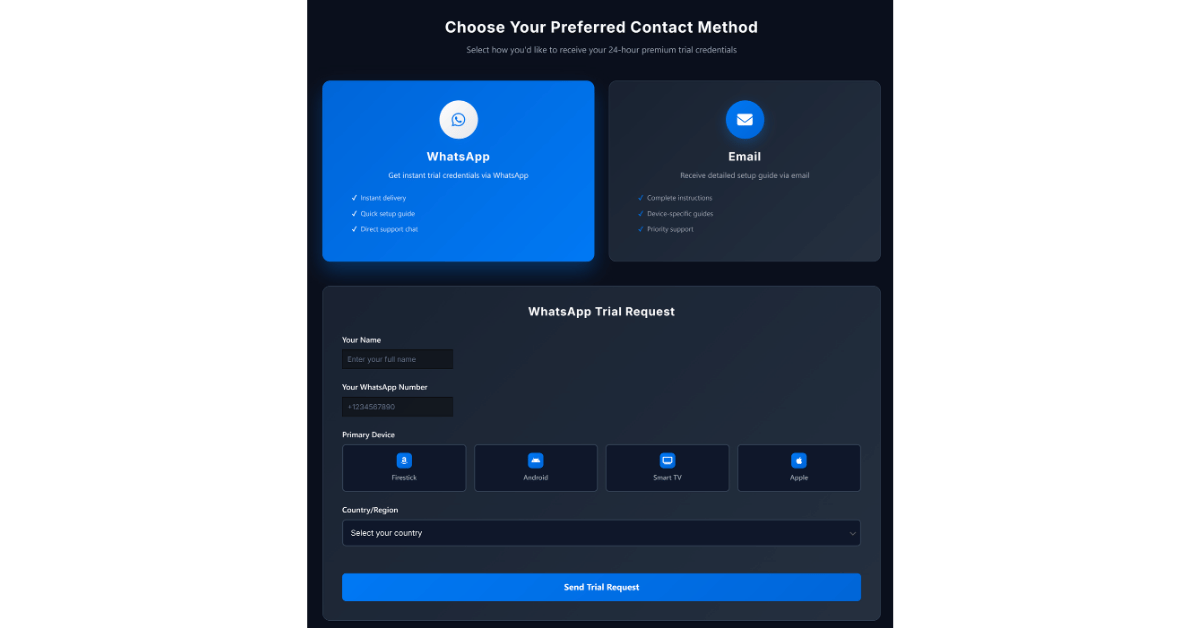
Trial Testing Checklist:
- Test during peak evening hours
- Verify multiple channel categories
- Check 4K/HD quality options
- Evaluate buffering frequency
- Test on all intended devices
Troubleshooting Workflow
Step-by-Step Diagnostic Process
When experiencing buffering issues, follow this systematic approach:
[IMAGE NEEDED: Flowchart showing diagnostic steps from speed test to advanced solutions]
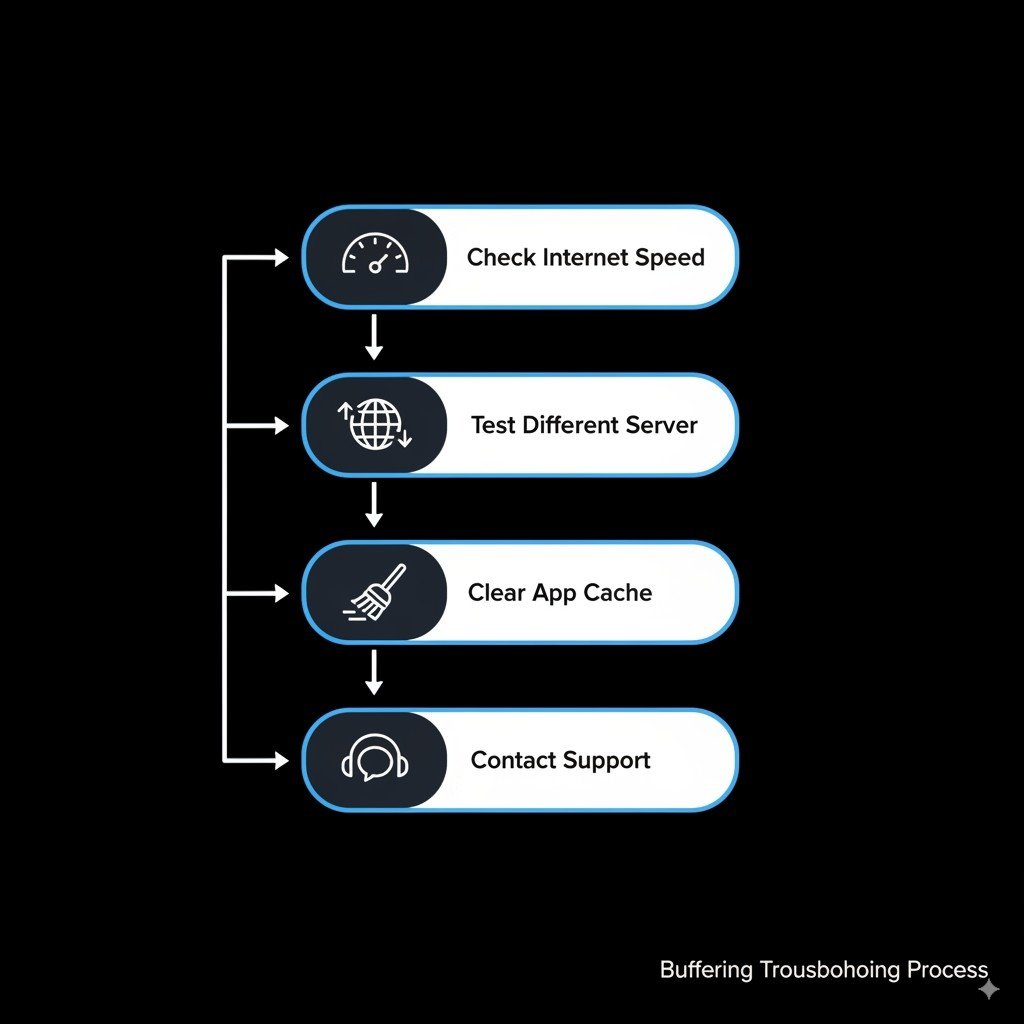
Level 1 – Basic Checks:
- Run internet speed test
- Restart streaming device
- Check other apps/websites for connectivity
- Verify IPTV service status
Level 2 – Connection Optimization:
- Switch to wired connection
- Restart router/modem
- Close background applications
- Change to different server/quality setting
Level 3 – Advanced Solutions:
- Configure QoS settings
- Change DNS servers
- Implement VPN solution
- Contact ISP regarding throttling
Level 4 – Professional Support:
- Contact IPTV provider support
- Consider equipment upgrades
- Evaluate alternative internet service
- Professional network assessment
Monitoring and Maintenance
Regular Performance Monitoring
Establish baseline performance metrics and monitor changes over time.
Weekly Monitoring Tasks:
- Speed test at consistent times
- Check for app/firmware updates
- Clear cache and restart devices
- Review router logs for errors
Monthly Maintenance:
- Update IPTV applications
- Review and optimize network settings
- Test backup servers and configurations
- Evaluate service quality and alternatives
Long-term Solutions
Equipment Upgrades: Consider upgrading older devices that consistently struggle with IPTV streaming.
Internet Service Evaluation: If persistent issues continue despite optimization, evaluate alternative internet providers or higher-tier service plans.
Professional Installation: For complex network environments, professional setup and optimization may provide significant improvements.
Prevention Strategies
Proactive Measures
Regular Maintenance Schedule:
- Weekly device restarts
- Monthly cache clearing
- Quarterly network optimization review
- Annual equipment evaluation
Backup Planning:
- Configure multiple IPTV servers
- Maintain secondary internet connection
- Keep alternative streaming options available
- Document working configurations
Future-Proofing Your Setup
Technology Upgrades:
- Wi-Fi 6 router implementation
- Gigabit internet service
- Modern streaming devices
- Mesh network systems
Service Diversification:
- Multiple IPTV provider options
- Backup streaming services
- Local content storage
- Over-the-air antenna backup
When to Contact Support
Professional Help Indicators
Seek technical support when:
- Buffering persists despite following all troubleshooting steps
- Multiple devices experience identical issues
- Internet speed tests consistently meet requirements but streaming fails
- Network equipment shows error messages or unusual behavior
Preparing for Support Calls
Information to Gather:
- Internet speed test results
- Device models and firmware versions
- Specific error messages
- Timing patterns of buffering issues
- Network configuration details
For qwiq.tv users, comprehensive support includes connection optimization assistance and server configuration recommendations. Our [Technical Support Guide – INTERNAL LINK PLACEHOLDER] provides detailed information about available assistance options.
Conclusion
IPTV buffering problems stem from multiple potential causes, but systematic troubleshooting resolves most issues effectively. By optimizing your internet connection, properly configuring devices, and selecting quality IPTV services, you can achieve reliable, buffer-free streaming.
Remember that consistent maintenance and monitoring prevent many buffering problems before they impact your viewing experience. When issues persist despite optimization efforts, professional support from your IPTV provider or network specialist can identify and resolve complex connectivity problems.
Quality IPTV services like qwiq.tv invest heavily in infrastructure and optimization tools that minimize buffering issues. Combined with proper home network configuration, these services deliver the smooth, reliable streaming experience that makes IPTV an excellent alternative to traditional cable television.
Ready to experience buffer-free IPTV streaming? Test qwiq.tv’s optimized streaming platform with our 24-hour free trial and discover the difference professional infrastructure makes for your viewing experience.